Template Tags
BaseMailer makes it easy to organize your email templates using tags, so you can quickly filter and manage them — especially helpful when working with multiple campaigns or teams.
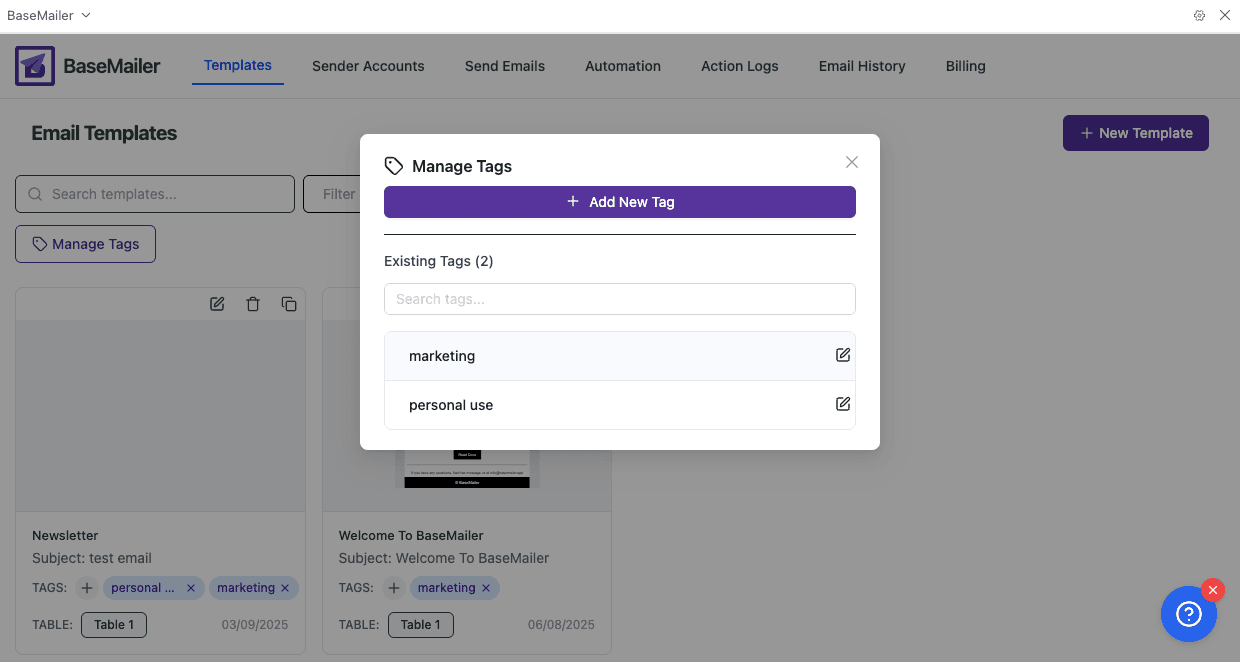
💡 To create or rename tags, click the “Manage Tags” button on the Templates screen.
Why Use Template Tags?
- ✅ Categorize templates (e.g. marketing, internal, follow-up)
- ✅ Instantly filter and search your templates
- ✅ Collaborate better with shared tag structure
- ✅ Keep your Airtable workspace clean and organized
How to Add or Remove Tags
You can manage tags directly from the Templates page — no need to open the template editor.
- Go to the Templates tab in BaseMailer
- Under each template card, click on the
+ Tagsbutton - Select or unselect tags from the dropdown
- Changes are saved automatically
How to Filter Templates by Tag
- Use the “Filter by tags” dropdown at the top of the Templates page
- Select one or more tags to narrow down your view
Tag Tips
- Create tags based on the purpose of the email:
marketingdrip-campaigninternalfollow-upannouncement
- Keep tag names short and clear
- Use multiple tags when needed (e.g.
marketing+internal)
🎯 Template Tags help you and your team stay organized and efficient — even as your campaigns scale.
Last updated on